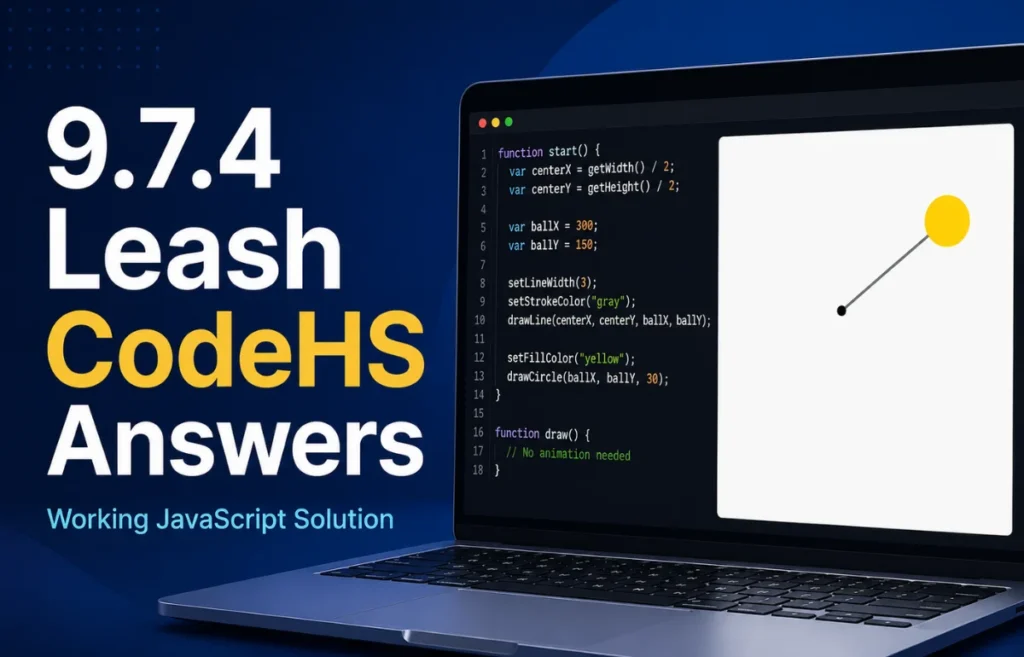
Stuck on the JavaScript graphics module in your computer science course and searching for verified leash codehs answers? The 9.7.4 Leash assignment is one of the most fundamental exercises in CodeHS because it introduces real-time mouse interaction and dynamic object updating.
In this exercise, you must construct a program where a ball follows the user’s mouse cursor across the screen while attached to a fixed center point by a line. While the visual output looks simple, writing clean code requires a solid grasp of event listeners, global variable scope, and coordinate geometry.
This guide provides the complete working solution for leash codehs answers, breaks down the core programming logic line by line, highlights common autograder errors, and teaches you how event-driven graphics work under the hood.
Quick Summary of Exercise Specifications
Before jumping into the source code, review the core assignment requirements to ensure your output satisfies all CodeHS test cases.
| Feature | Requirement Specification |
| Exercise Module | CodeHS JavaScript Graphics (Mouse Events) |
| Primary Objects | One Circle (Ball) and one Line (Leash) |
| Anchor Point | Canvas Center: (getWidth() / 2, getHeight() / 2) |
| Trigger Mechanism | Mouse Movement via mouseMoveMethod() |
| Dynamic Updates | Object coordinates update continuously on cursor movement |
| Common Pitfalls | Re-instantiating objects inside event handlers; scope errors |
Problem Breakdown: How the Leash Mechanics Work
To solve the 9.7.4 exercise, your code must perform two main operations: initialization and event handling.
During initialization, the program runs the start() function once. It calculates the center coordinates of the graphics canvas using getWidth() / 2 and getHeight() / 2.
Next, it instantiates a line and a circle at those exact center coordinates. Both graphic elements begin stacked in the middle of the screen before any user interaction takes place.
Finally, the program registers an event listener using mouseMoveMethod(leash). This instructs CodeHS to watch the canvas for cursor movement and execute the leash function every time the mouse moves even a single pixel.
When the mouse moves, the event callback receives an event object e. The handler updates the line endpoint to (e.getX(), e.getY()) and moves the ball to the same coordinates, producing a smooth stretching leash effect.
Complete Working Code Solution for Leash CodeHS Answers
Here is the fully functional, clean JavaScript solution that passes all CodeHS automated test suites and style checks.
JavaScript
// Constants
var BALL_RADIUS = 20;

// Global variables for graphic objects
var ball;
var line;

function start() {
    // Calculate canvas center coordinates
    var centerX = getWidth() / 2;
    var centerY = getHeight() / 2;

    // Create the leash line anchored at canvas center
    line = new Line(centerX, centerY, centerX, centerY);
    line.setColor(Color.black);
    add(line);

    // Create the ball placed at canvas center
    ball = new Circle(BALL_RADIUS);
    ball.setPosition(centerX, centerY);
    ball.setColor(Color.yellow);
    add(ball);

    // Register mouse move event listener
    mouseMoveMethod(leash);
}

// Event handler function triggered on mouse movement
function leash(e) {
    // Move the line endpoint to current mouse position
    line.setEndpoint(e.getX(), e.getY());

    // Move the ball to current mouse position
    ball.setPosition(e.getX(), e.getY());
}
Line-by-Line Code Breakdown
Understanding why this code works is vital for passing upcoming unit exams and larger graphics projects. Let’s analyze every section in detail.
1. Declaring Constants and Global Variables
JavaScript
var BALL_RADIUS = 20;
var ball;
var line;
The BALL_RADIUS constant sets the size of the circle object. Defining ball and line at the top of the script gives them global scope.
Global scope is critical here. If you declare var ball inside start(), the leash(e) function cannot access or modify the ball when the mouse moves.
Declaring object references globally allows start() to create the objects and leash(e) to update their positions across function boundaries.
2. Calculating Canvas Dimensions in start()
JavaScript
var centerX = getWidth() / 2;
var centerY = getHeight() / 2;
CodeHS screens default to 400×400 pixels, but hardcoding 200 for center coordinates is bad practice.
Using getWidth() / 2 and getHeight() / 2 makes your graphics layout responsive to any screen size.
These variables locate the horizontal and vertical center points used to anchor the starting positions.
3. Creating and Rendering Graphic Elements
JavaScript
line = new Line(centerX, centerY, centerX, centerY);
line.setColor(Color.black);
add(line);

ball = new Circle(BALL_RADIUS);
ball.setPosition(centerX, centerY);
ball.setColor(Color.yellow);
add(ball);
The Line constructor accepts four parameters: start X, start Y, end X, and end Y. Initially, both endpoints sit at the canvas center, making the line invisible until the user moves the mouse.
The order of add() calls matters immensely for canvas layering.
add(line) runs before add(ball) so that the line draws behind the ball. If you reverse this order, the line appears on top of the circle, ruining the visual presentation.
4. Attaching the Mouse Event Listener
JavaScript
mouseMoveMethod(leash);
This built-in CodeHS function links mouse movement across the canvas to your callback function.
Notice that leash is passed without parentheses. Passing leash gives CodeHS a reference to the function so it can invoke it on movement events.
If you write mouseMoveMethod(leash()), JavaScript executes leash immediately once during initialization and passes its return value instead of registering the event listener.
5. Updating Coordinates in leash(e)
JavaScript
function leash(e) {
    line.setEndpoint(e.getX(), e.getY());
    ball.setPosition(e.getX(), e.getY());
}
The parameter e represents the mouse event object passed automatically by CodeHS.
Calling e.getX() and e.getY() retrieves the exact horizontal and vertical pixel coordinates of the cursor relative to the canvas origin (0,0).
setEndpoint() shifts the line’s moving end to match the cursor while leaving its starting point fixed at the canvas center. Simultaneously, setPosition() centers the ball over the cursor.
Common Mistakes in Leash CodeHS Answers and How to Fix Them
Many students write code that looks correct at first glance but fails CodeHS checks or behaves erratically. Review this troubleshooting matrix to fix frequent bugs.
| Common Error Code | Underlying Bug | How to Correct It |
Creating new Circle() inside leash(e) | Generates thousands of new circles on every mouse movement, causing severe lag and solid color trails. | Instantiate objects once in start(). Modify existing objects inside leash(e). |
mouseMoveMethod(leash()); | Calling the function with parentheses during listener registration. | Remove parentheses: mouseMoveMethod(leash);. |
Declaring var ball; inside start() | Scope error: leash(e) cannot access local variables declared inside start(). | Move variable declarations to global scope at the top of the file. |
Reversing add() render order | Line draws over the top of the ball instead of connecting underneath it. | Call add(line); before add(ball); inside start(). |
Avoiding Object Duplication Memory Leaks
The most common beginner error in 9.7.4 is writing object creation logic inside the event handler:
JavaScript
// INCORRECT APPROACH - DO NOT DO THIS
function leash(e) {
    var line = new Line(200, 200, e.getX(), e.getY());
    var ball = new Circle(20);
    ball.setPosition(e.getX(), e.getY());
    add(line);
    add(ball);
}
Every pixel the mouse moves triggers leash(e). Creating new shapes inside this function stacks hundreds of lines and circles on top of each other.
This consumes massive memory, causes low frame rates, and causes CodeHS automated grading tests to fail instantly.
Always follow the instantiation pattern: create once during initialization, then mutate coordinates during events.
Key Programming Concepts Learned from 9.7.4 Leash
Completing this assignment strengthens four fundamental software development concepts:
- Event-Driven Architecture: Code execution shifts from linear execution (top-to-bottom) to reactive execution triggered by user input.
- Variable Scope and Lifetimes: Understanding why global variables are necessary when multiple asynchronous functions must interact with shared objects.
- Canvas Coordinate System: Navigating the two-dimensional grid where (0,0) represents the top-left corner and (getWidth(), getHeight()) represents the bottom-right corner.
- State Persistence: Modifying property values of existing object instances (
setEndpoint,setPosition) rather than recreating state from scratch.
Frequently Asked Questions
Why does my leash line disappear when I move the mouse?
This happens if you accidentally reset both line endpoints inside the event listener using setPosition() or incorrect method parameters. Ensure you use line.setEndpoint(e.getX(), e.getY()), which updates only the moving end of the line while keeping the start coordinate anchored to the canvas center.
Can I change the colors or circle size in CodeHS 9.7.4?
While you can customize colors during testing using Color.red or Color.blue, automated CodeHS exercise checkers often test for default parameters or specific constant names. Keep BALL_RADIUS = 20 and default colors to ensure 100% test case pass rates.
How do I fix the “e is not defined” ReferenceError?
This error occurs if your function header omits the event parameter. Ensure your event handler function is defined as function leash(e) so JavaScript can inject the mouse coordinate event data into variable e.
Why does CodeHS mark my solution wrong even if the graphics work?
CodeHS checks both runtime visual behavior and code structure. Ensure you define BALL_RADIUS as a constant at the top, use proper indentation, avoid duplicate object creation, and utilize getWidth() and getHeight() methods rather than hardcoded numerical canvas dimensions.
Final Thoughts on Leash CodeHS Answers
Mastering the 9.7.4 leash assignment is an essential stepping stone in CodeHS JavaScript programming. By declaring global object references, instantiating graphics inside start(), and updating coordinates inside an event callback, you build clean, performant event-driven applications.
Apply these structural patterns to future assignments like click games, collision detection, and custom animation loops. Bookmark this guide for quick reference whenever you need verified leash codehs answers and line-by-line debugging insights!