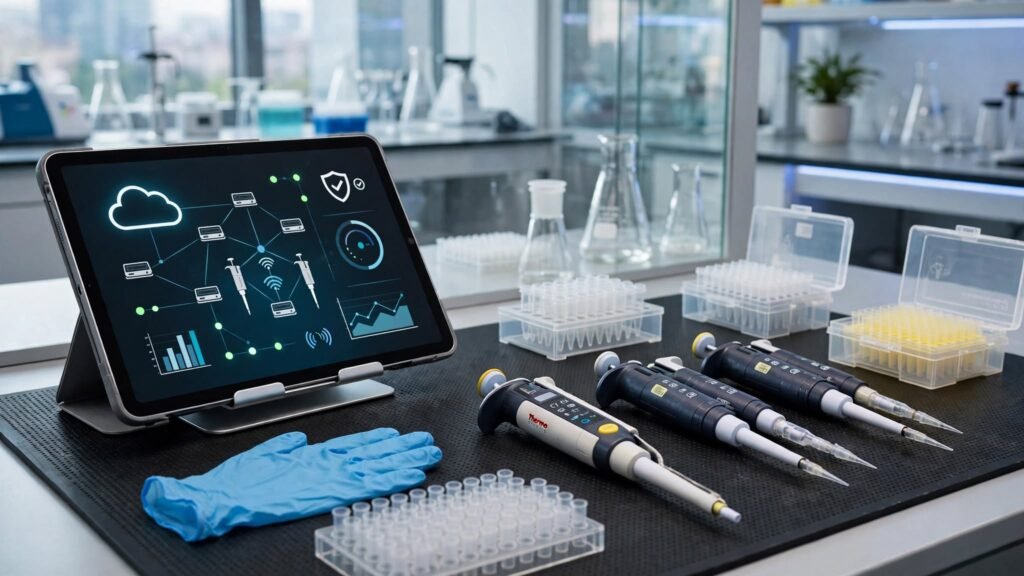
Laboratories depend on accurate liquid handling, consistent procedures, and reliable equipment to produce meaningful results. However, managing repeated pipetting tasks across multiple instruments and team members can become time-consuming. This is where mypipette becomes an interesting search topic for researchers and laboratory professionals.
In the laboratory technology context, MyPipette is associated with Thermo Fisher Scientific’s My Pipette Creator, a web-based application designed to simplify electronic pipette programming and protocol management. It allows users to create, edit, organize, and share programs for compatible electronic pipettes.
Understanding how mypipette works can help laboratory teams decide whether it fits their existing equipment and research workflows. This guide explores its features, compatibility, setup process, advantages, limitations, and practical considerations.
What Is MyPipette?
MyPipette commonly refers to Thermo Fisher Scientific’s My Pipette Creator application in laboratory-related searches. It is part of the Thermo Fisher Connect platform and provides a centralized environment for managing electronic pipette programs.
Instead of manually creating every procedure directly on an electronic pipette, users can prepare and organize programs through a computer-based interface.
The application is designed to support:
- Creating customized pipetting programs.
- Editing existing protocols.
- Downloading available pre-programmed protocols.
- Transferring programs to compatible electronic pipettes.
- Sharing programs with colleagues.
- Managing multiple connected instruments.
These capabilities are particularly relevant to research facilities that repeat similar liquid-handling procedures throughout the working day.
Importantly, My Pipette Creator is not a universal pipette-control application. Its instrument connectivity depends on supported Thermo Scientific equipment and the required software and computer setup.
What Is Thermo Fisher MyPipette Creator Used For?
The primary purpose of My Pipette Creator is to simplify electronic pipette programming and improve the organization of laboratory procedures.
Traditional pipette programming may involve entering individual steps directly through an instrument’s interface. For complicated or frequently repeated procedures, this can require considerable attention.
A centralized application provides another way to prepare and organize these programs.
1. Electronic myPipette Programming
Users can create customized programs through a computer rather than entering every instruction directly into the instrument.
Depending on the compatible pipette and application functions, programs can contain different liquid-handling steps and dispensing operations.
This approach can make complex procedures easier to review before transferring them to laboratory equipment.
2. Centralized Protocol Management
My Pipette Creator allows users to organize programs through the Thermo Fisher Connect environment.
Centralized management can help laboratories maintain consistent procedures, particularly when several researchers perform similar experiments.
It also provides a more organized alternative to relying on individually programmed instruments without a shared workflow.
3. Protocol Sharing
Collaboration is another important feature.
A laboratory manager or experienced researcher can create a program and share it with colleagues rather than requiring every team member to recreate the same instructions independently.
This can be useful for laboratories with multiple technicians, research groups, or different working locations.
4. Access to Ready-Made Protocols
The application includes a Protocol Library containing programs developed for selected Thermo Scientific kits and common pipetting applications.
Users can search for suitable protocols, save available programs to their own program collection, and edit them where supported.
However, laboratories should always verify that a selected protocol matches the instrument model, application, and experimental requirements before using it.Thermo Fisher Scientific – US+1
Key Features of the MyPipette App
Understanding the major features helps explain why connected pipetting systems can be useful in modern research environments.
| Feature | Purpose | Practical benefit |
|---|---|---|
| Program creation | Build custom pipetting instructions | Easier preparation |
| Program editing | Modify existing programs | Flexible workflows |
| Protocol Library | Access available ready-made programs | Reduced manual setup |
| Instrument connectivity | Connect compatible pipettes | Program transfer |
| Program sharing | Share procedures with colleagues | Team consistency |
| Cloud storage | Store programs within the platform | Centralized organization |
Custom Program Creation
Researchers can prepare customized programs based on their laboratory requirements.
For example, a team repeatedly preparing samples for a particular assay may benefit from creating a reusable program rather than entering the same instructions each time.
Before adopting a saved program, users should check volumes, dispensing operations, sample characteristics, and instrument suitability.
Protocol Library Integration
The Protocol Library is particularly useful when a laboratory regularly works with supported Thermo Scientific reagent kits.
Instead of building every procedure from scratch, users can search for an available program using relevant keywords, kit information, or application details.
Availability depends on the protocols provided in the library.
Managing Multiple MyPipettes
My Pipette Creator also supports managing multiple compatible pipettes through the connected platform.
This can be helpful when a laboratory operates several instruments and wants to maintain better organization across its equipment.
Which Pipettes Are Compatible With MyPipette?
Compatibility is one of the most important things to check before using the application.
Thermo Fisher identifies two compatible product families:
- Thermo Scientific E1-ClipTip electronic pipettes.
- Thermo Scientific FluidEase Pro ClipTip electronic pipettes.
The official documentation specifies software requirements for supported models. The published compatibility information identifies E1-ClipTip and FluidEase Pro ClipTip electronic pipettes with supported software versions, including version 1.28 and later for the documented compatible configurations.
Connection options vary by model.
| Equipment | Connection method |
|---|---|
| Bluetooth-enabled E1-ClipTip | Bluetooth or compatible USB connection |
| E1-ClipTip without Bluetooth | USB connection |
| FluidEase Pro ClipTip | Supported USB-C connection or Bluetooth where available |
Not every pipette supports every connection method. Confirm the exact model, hardware configuration, and current manufacturer documentation before purchasing equipment or planning a laboratory installation.Thermo Fisher Scientific – US+2
How to Set Up MyPipette Creator
Getting started involves preparing an account, installing the required utility, connecting compatible equipment, and linking the instrument to the application.
Follow these steps.
Step 1: Create a Thermo Fisher Connect Account
Visit the official Thermo Fisher Connect platform.
Create an account and sign in using your registered credentials.
The My Pipette Creator application is available through the platform. An account is required to access its cloud-based functionality.
Step 2: Open MyPipette Creator
Locate My Pipette Creator within the Thermo Fisher Connect application environment.
Open the application and find the option to add a compatible electronic pipette.
Review the available connection instructions before proceeding.
Step 3: Install MyPipette Connect Utility
The My Pipette Connect Utility is a computer application that helps establish communication between supported electronic pipettes and Thermo Fisher Cloud.
Download it through the official application instructions.
Install the utility on a compatible Windows computer and make sure it is running before attempting instrument connectivity.
Step 4: Connect Your Electronic Pipette
Depending on your model, connect the instrument using Bluetooth or an appropriate USB data cable.
For Bluetooth-enabled E1-ClipTip models:
- Enable Bluetooth on the pipette.
- Enable Bluetooth on the computer.
- Pair the two devices through the computer’s Bluetooth settings.
- Confirm that the pipette is recognized.
For USB connectivity, use the appropriate supported data cable and enable the connection through the pipette settings.
A charging-only cable may not support data transfer, so verify the cable specification.
Step 5: Link the MyPipette to Your Account
Once the computer recognizes the pipette, follow the application’s linking instructions.
The instrument may generate a linking code that you need to enter into My Pipette Creator.
After successful linking, the instrument should appear in the application’s My Pipettes section.
Step 6: Create or Transfer a Program
You can now create a new program or select an available protocol from the library.
Review the program carefully before transferring it to the pipette.
Start with a simple test workflow and confirm that the instrument recognizes the program correctly.Thermo Fisher Documents+2
Benefits of Using MyPipette in Laboratory Workflows
Connected pipetting is useful because laboratory consistency depends on more than the quality of individual instruments.
The way procedures are created, shared, and repeated also matters.
Improved Workflow Organization
A centralized system helps researchers keep commonly used programs organized.
This can reduce the need to search through individual instruments or recreate previously prepared instructions.
Reduced Repetitive Programming
When a laboratory frequently repeats similar procedures, reusable programs can reduce repeated manual setup.
Researchers can spend more time preparing and reviewing experiments instead of repeatedly entering identical programming instructions.
Better Team Collaboration
Shared protocols can help different team members work from the same prepared procedure.
This is particularly useful in teaching laboratories, research departments, and facilities where multiple technicians handle similar samples.
Support for Reproducible Procedures
Using a common program can help reduce variation caused by repeatedly entering different instructions.
However, reproducibility still depends on instrument calibration, appropriate tips, operator technique, sample properties, and experimental validation.
Digital programming supports consistency; it does not independently guarantee accurate results.
My Pipette Creator Limitations You Should Understand
Although the platform provides useful capabilities, laboratories should understand its technical limitations before making it part of their daily operations.
Internet access is required. My Pipette Creator is a web-based application and does not provide offline application access according to the manufacturer’s published FAQs.
Instrument transfer requires compatible equipment. A computer browser alone cannot connect an unsupported pipette to the platform.
Windows connectivity requirements matter. The manufacturer’s documentation specifies Windows requirements for the My Pipette Connect Utility. Its published FAQ identifies Windows 10 and Windows 7 SP1 support for the documented utility version. Check current support requirements before installing it on a modern computer.
Mobile use has limitations. The application can be accessed through mobile browsers, but the manufacturer does not provide a separate mobile application and does not optimize the browser experience for mobile use.
Laboratory validation remains necessary. A saved program should not be treated as proof that an experimental procedure is scientifically correct or suitable for every liquid.
These limitations are important when evaluating whether the application fits a particular laboratory’s infrastructure.Thermo Fisher Scientific – US+1
Common My Pipette Connection Problems and Solutions
Connection problems can interrupt laboratory workflows, particularly when instruments have not been configured correctly.
Here are some practical checks.
Bluetooth Connection Not Working
If the computer cannot detect the electronic pipette:
- Confirm that Bluetooth is enabled on both devices.
- Check that the computer’s Bluetooth drivers are up to date.
- Restart the My Pipette Connect Utility.
- Remove the existing pairing and reconnect the devices.
- Restart the computer and pipette if necessary.
USB Connection Not Recognized
Check whether the cable supports data transfer.
Also confirm that the correct USB connection setting is enabled on the pipette and that the computer recognizes the instrument.
Program Transfer Failure
A transfer problem may occur because of an incompatible program, an instrument communication issue, or a busy pipette.
Review the error message and check whether the selected program matches the connected pipette model.
Pipette Software Compatibility Issues
An outdated software version can prevent successful connection or program transfer.
Check the installed software version against the manufacturer’s compatibility requirements and follow its official update instructions.
For specific error codes, consult the My Pipette Creator error-message documentation rather than guessing at the cause.Thermo Fisher Scientific – HK+1
How to Maintain Pipetting Accuracy When Using Digital Protocols
One important distinction is that programming consistency and measurement accuracy are not the same thing.
A digital protocol can help users repeat the same instructions, but accurate liquid handling still depends on proper laboratory practices.
Consider these recommendations:
- Use compatible pipette tips: Mismatched tips can affect the seal and liquid delivery.
- Maintain consistent technique: Keep aspiration depth, pipette angle, and dispensing technique consistent.
- Follow appropriate calibration procedures: Regularly assess instrument performance according to laboratory requirements.
- Consider liquid properties: Viscosity, density, and temperature can influence liquid delivery.
- Train laboratory personnel: Every operator should understand the instrument and the procedure.
- Validate important workflows: Confirm that programmed procedures produce acceptable results before using them for critical experiments.
Thermo Fisher’s own pipetting guidance emphasizes consistent technique, suitable tips, calibration, and appropriate handling of different liquids.
For additional practical information, consult its Good Lab Pipetting Guide and E1-ClipTip pipetting recommendations.
Frequently Asked Questions About MyPipette
1. What is MyPipette used for?
MyPipette is associated with Thermo Fisher Scientific’s My Pipette Creator, a web-based application for managing electronic pipette programs. It supports protocol creation, editing, sharing, and transfer to compatible instruments.
2. Is My Pipette Creator free?
Thermo Fisher’s published FAQs state that anyone with a Thermo Fisher Cloud account can access My Pipette Creator and that creating an account is free. However, compatible laboratory equipment and other operational requirements may involve separate costs.
3. Which pipettes work with My Pipette Creator?
The manufacturer identifies compatible Thermo Scientific E1-ClipTip and FluidEase Pro ClipTip electronic pipettes. Check the specific model and software version before attempting to connect an instrument.
4. Can I use My Pipette Creator offline?
No. According to Thermo Fisher’s published FAQs, the application requires an internet connection. Users should plan their workflow accordingly.
5. Does My Pipette Creator work on Mac?
The application can be accessed through typical web browsers on Windows and Mac computers. However, the manufacturer’s documented instrument connection utility requires Windows for the supported connection and program-transfer workflow.
6. Can I connect My Pipette using Bluetooth?
Bluetooth connectivity is available for supported instrument models. The pipette and computer must support the required connection, and the devices must be properly paired.
Some models also support USB connectivity.
7. Can I share pipette protocols with colleagues?
Yes. Protocol sharing is one of the application’s main features. It allows users to share programs with other team members through the connected platform.
8. Does My Pipette Creator improve laboratory accuracy?
It can support consistent programming and help reduce repeated manual setup. However, it does not replace proper calibration, validated procedures, suitable pipette tips, or trained laboratory personnel.Thermo Fisher Scientific – US+2
Conclusion
MyPipette is an interesting laboratory technology topic because it connects electronic pipette programming with centralized protocol management and team collaboration.
Thermo Fisher Scientific’s My Pipette Creator provides tools for creating, editing, storing, transferring, and sharing programs across compatible electronic pipettes. Its features can help laboratories organize repeated workflows and reduce unnecessary manual programming.
However, successful implementation requires compatible instruments, appropriate software, reliable connectivity, and proper laboratory procedures.
Before adopting MyPipette, verify your pipette model, review the connection requirements, and test a simple protocol. For laboratory teams interested in improving workflow organization, understanding these capabilities is a practical starting point.
For more useful technology guides and practical insights, explore the latest articles at Times Posting.